
Connect your AI app to Journal
Ask your AI app to find entries, look back on your week or add a task using your cloud-synced Journal.
Turn on cloud sync in the mobile app first. Only synced content is available.
Try asking
Summarize my entries from last week.
Find entries where I wrote about my new job.
- Plus
Add a task to call the dentist tomorrow.
Access and daily limits
Free: read and search diaries enrolled for cloud sync, up to 20 tool calls per day.
Plus: read and search all synced diaries, tasks, habits and goals, and add or append content, up to 200 tool calls per day. Entries cannot be deleted.
Limits reset at midnight UTC. One request may use several tool calls.
Manage or revoke connectionsHow to connect
MCP server URL
https://journalpersonaldiary.com/api/mcpAI chat apps

Claude
Works on claude.ai, Claude Desktop and the Claude mobile apps. Claude Free allows one custom connector; Pro, Max, Team and Enterprise also support them. On Team and Enterprise, an owner adds Journal under Organization settings > Connectors, then each member connects it.
- On claude.ai or in Claude Desktop, open Customize > Connectors, select + Add, then Add custom connector.
- Name it Journal and paste the MCP server URL above. For the OAuth client, keep Claude’s published identity or choose automatic registration, then select Add.
- Sign in to Journal, review the requested access and approve. Then turn on the connector in your chat.
- On iPhone, iPad or Android, sign in to the same Claude account. Connectors you add on the web or desktop are available there too.
ChatGPT
ChatGPT on the web. OpenAI lists custom MCP servers for Business and Enterprise/Edu with full access, subject to workspace permissions, and for Pro with read/fetch access only, so adding entries and tasks is unavailable there.
- On chatgpt.com, open Plugins, select + and then Add custom MCP server.
- Name it Journal, paste the MCP server URL above and choose OAuth authentication. Review the warning, select I understand and want to continue, then Create as a plugin.
- Sign in to Journal when asked and approve the requested access. Install the plugin, then type @ in a chat and select Journal.

Gemini
Custom apps in the Gemini app need a personal Google Account, age 18 or over, in the US, with Gemini in English and Keep Activity on. Work and school accounts are not supported yet.
- On a computer, go to gemini.google.com, open Settings, then Connected Apps.
- Under Custom apps, select Add a custom app, paste the MCP server URL above and select Next. Journal registers the app automatically, so you can skip Advanced features.
- Sign in to Journal and approve the requested access. In a chat, type @ and select Journal. Once connected, it also works in the Gemini mobile app.
Other MCP clients
Developer tools and any other app that connects to remote MCP servers with OAuth sign-in.
Gemini CLI
For Gemini CLI on a paid plan or with an API key. Google replaced Gemini CLI with Antigravity CLI for free and Google One users on June 18, 2026.
- Add Journal as a remote HTTP server:
gemini mcp add --transport http journal https://journalpersonaldiary.com/api/mcp - Start Gemini CLI and run this command, then sign in to Journal in the browser that opens and approve access:
/mcp auth journal

Antigravity
- Add Journal to ~/.gemini/config/mcp_config.json. The same file works for the Antigravity app, editor and CLI:
{ "mcpServers": { "journal": { "serverUrl": "https://journalpersonaldiary.com/api/mcp" } } } - Open the agent settings, go to Customizations and select Authenticate next to journal. Sign in to Journal in your browser, approve access, then paste the code shown back into Antigravity.
Codex
The Codex CLI, the Codex IDE extension and the ChatGPT desktop app share one MCP configuration.
- Add Journal:
codex mcp add journal --url https://journalpersonaldiary.com/api/mcp - Run this command, then sign in to Journal in your browser and approve access:
codex mcp login journal
Claude Code
- Add Journal:
claude mcp add --transport http journal https://journalpersonaldiary.com/api/mcp - In Claude Code, run /mcp, select journal and follow the browser sign-in to approve access.
Cursor
- Add Journal to ~/.cursor/mcp.json, or to .cursor/mcp.json in a project:
{ "mcpServers": { "journal": { "url": "https://journalpersonaldiary.com/api/mcp" } } } - When Cursor connects, sign in to Journal in your browser and approve access.
Any MCP client
- Add a remote MCP server with the URL above, using the Streamable HTTP transport.
- Choose OAuth sign-in. The client finds Journal’s sign-in automatically and registers itself, through dynamic registration or a client ID metadata document, without a client secret. Sign in to Journal in your browser and approve access.
Before you approve
Whatever your AI app reads is sent to the company that runs it and handled under that company’s policies. Only connect apps you trust. You can revoke access at any time.
With end-to-end encryption on, apps can see metadata such as dates, moods and tags. They cannot read your text, search it or add content.
Manage or revoke connections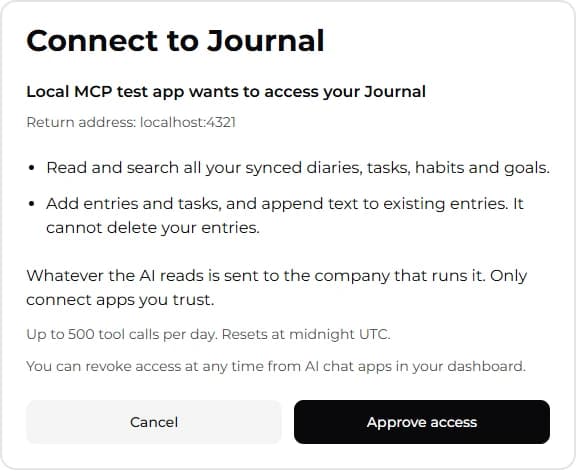
Example approval screen from a local test app. Your app name and permissions may differ.